Blank screen after deploying: the four causes on any host
Your app works in the AI website builder's preview, then shows nothing once it's live. Netlify, another host, Bolt.new, another builder: the same four things go wrong, and the live site tells you which one before you touch a setting.
Quick answer
The preview runs your project inside the builder, with its settings already in place. The live site is a set of built files on another computer, and four things don't travel there on their own: which folder to publish, where the page looks for its files, your environment variables and a rule for page links. Open the live site's console first. What it shows points to the one you have.
Tools for this build
Custom Prompt Builder
Turns a task into a well-formed prompt for your AI coding agent, such as the diagnosis prompt below.
Website Prompt Generator
Ready-made prompts for fixing website SEO issues. Useful as the next job, once the site loads and you want Google to find it.
POPIA Compliance Checker
Checks how your app handles customer data. Worth running once the blank screen is fixed and real visitors can reach the site.
Why does it work in preview but not once it's live?
Because the preview and the live site aren't the same thing running in two places. The preview runs your project inside the builder, with your settings already filled in. Deploying runs a build step that turns the project into finished files, and a host then serves those files. Anything the builder quietly handled is now the host's job.
In Bolt.new, for example, the preview runs inside your own browser tab. A working preview proves your app works inside the builder. It proves nothing about the handoff.
Four settings have to be right on the host: the output folder, the base path, your environment variables and the rule for page links. A builder that publishes and hosts the site itself may set some of them for you. When the project goes to a separate host such as Netlify, whether you connect it or the builder sends it there, check all four yourself. Any one of them can leave the screen blank.
Step 1: look before you change anything
A blank screen feels like no information. It isn't. Look in three places. Two are in your browser: open the live site and press F12 in Chrome, Edge or Firefox (or right-click and choose Inspect). The third is on your host.
- Console: any error in red that appeared while the page loaded.
- Network: reload the page with this tab open. Look for your own files, the ones ending in
.jsor.css, marked as failed or 404, the server's "not found" reply. - Your host's build log: the record of what happened when the host built your site. An error here means the build itself failed, before the other three causes come into it.
You don't need to understand what you find. Copy the exact error text; your AI can read it for you, and the prompt further down asks it to.
Which of the four causes do you have?
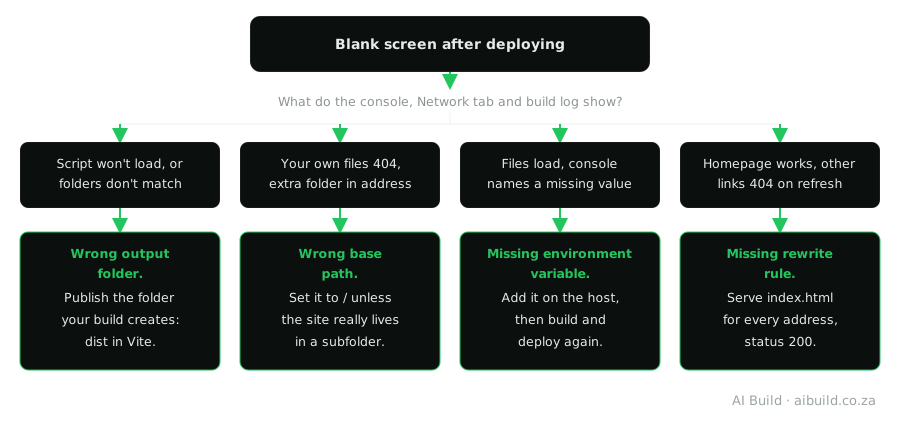
Cause 1: the host publishes the wrong folder
Your project isn't what visitors get. A build command turns it into finished files and puts them in an output folder. In a Vite project (Vite is a build tool; your AI can tell you if yours uses it), that folder is called dist unless someone changed it. The host needs two answers from you: which command builds the site, and which folder to publish.
If either one is wrong, the host has nothing, or the wrong thing, to serve. The quick check: compare the folder named in your host's publish setting with the folder your build actually creates. If they differ, that's your cause. The console may also report a script that couldn't be loaded.
Cause 2: the page looks for its files in the wrong place
The built page doesn't contain your app. It points to separate script and style files, and a setting called the base path tells it where to find them. In Vite that's the base setting, and it starts as /, the root of your domain.
If the base path names a subfolder, such as /my-app/, while your site lives at the root, every file is requested from a folder that doesn't exist. The sign is in the Network tab: your own files fail with a 404, and their address has that extra folder in it. Set the base path back to / unless your site really does live in a subfolder.
Cause 3: a setting never reached the host
Environment variables are named values, such as your database address, that your code looks up instead of having them typed into the code itself. The values you entered in the builder live in the builder. A host you set up yourself starts without them, and an app that can't find its database address can stop before it draws anything.
In a Vite project, variables whose names start with VITE_ are written into your built files during the build. That has two results you need to know:
- Adding a variable on the host does nothing until you build and deploy again. As of September 2026, Netlify's own documentation says the same: variable changes "require a build and deploy to take effect."
- Anything in a
VITE_variable can be read by anyone who opens your site's files. Never put a secret key in one. A public key meant for the browser is fine; a secret key belongs on a server.
The sign: all your files load, but the console shows an error naming a missing address or key, or the word undefined. Add each variable on the host with exactly the same name your code uses, capital letters included, then start a new deploy.
Cause 4: other pages fail on refresh
This one applies if your app is a single-page app: one real HTML file, index.html, with the app's own code deciding what to show at /about or /dashboard. Clicking a link inside the app works, because the app handles it. If you refresh that page or open the link directly, the browser asks the host for a file at /about. There isn't one, so unless the host is set up for single-page apps, it answers with a 404.
The fix is a rewrite rule: for any address, serve index.html with a success status and let the app take it from there. On Netlify, that's a file named _redirects, with no file extension, containing one line:
/* /index.html 200In a Vite project the file goes in the public folder, because Vite copies that folder's contents into the root of the built output. Some hosts use the same file, some use their own format, and some serve single-page apps correctly with no rule at all. Ask your AI what yours needs.
The five checks, in order
- Open the live site's console and Network tab, and your host's build log, before changing any setting.
- Check that the host runs your project's build command and publishes the folder that build creates.
- If your own script and style files fail with a 404 and their address has an extra folder in it, set the base path back to the root.
- On the host, add every environment variable your code reads, with exactly the same names, then build and deploy again.
- If other pages fail when refreshed or opened directly, add a rule that serves
index.htmlfor every address.
When none of the four fit
Go back to the build log. If it shows an error, the build itself failed. First confirm the host runs the right build command (Cause 1). If it does, the problem is in the code: paste the error to your AI and fix it in the builder before you deploy again.
If your host keeps a build cache, look for its option to rebuild without it. A leftover file from an earlier broken build can sometimes survive into a new one, and a clean rebuild clears it out. It fixes the symptom, though, so read the log afterwards to learn what actually went wrong.
What to tell your AI
Your AI can read your project's settings far faster than you can. It can't see your live site, so you bring it what the console and build log show. Paste this into the chat where you're building, filling in the brackets:
My app works in the preview but shows a blank screen after I deployed it to [your host]. Help me find the cause before changing anything.

1. Tell me the build command this project uses and the folder the build creates.
2. Tell me what the base path is set to, and whether it should be the root.
3. List every environment variable the code reads, by exact name, and which of them end up in the browser.
4. Tell me whether the app is a single-page app. If it is, write the rewrite rule for [your host] and tell me which folder the file goes in.
5. Here is what the live site's console and my host's build log show: [paste the errors].

Tell me which cause is most likely and why. Don't change any code yet.
What to check in its answer
- It should name one build command and one folder. Compare the folder with your host's publish setting yourself.
- If a variable that ends up in the browser holds a secret key, that's a bigger problem than the blank screen. Ask it how to move that key to the server side.
- The variable names you set on your host must match the list it gives you exactly, capital letters included.
- If it suggests a fix for a cause your console didn't show, ask why before you accept it.
- It only knows what you pasted. If its answer doesn't match the errors you gave it, it's guessing.
What isn't possible
- A working preview can't prove a deploy will work. Only the live site can.
- Your AI can't see your live site's console or your host's settings. It works from what you paste in and what's in the project.
- You can't hide a secret key in an environment variable the browser reads. The build writes it into files anyone can read.
- No single file fixes page links on every host. The idea is the same everywhere; how you tell the host differs, so check what yours expects.
Where to go next
- What a deploy actually does, step by step: What Does Deployment Mean?
- If environment variables are new to you: What Is an Environment Variable?
- Why a secret key can't live in the browser, and where it goes instead: Why You Can't Put an API Key in Your Frontend Code.
- Stuck fixing the same bug over and over: Breaking Vibe-Code Loops.
Not affiliated with the platforms we write about
AI Build South Africa is an independent resource. We're not affiliated with, endorsed by or an official partner of Bolt.new, Netlify or Vite. Hosting settings and interfaces change over time, so confirm current steps against each platform's own documentation. See our Disclaimer for the full disclosure and our Terms of Service for the wider terms.
Frequently asked questions
Why does my app work in preview but show a blank page once it's live?
Nothing in the preview ever had to be found by a stranger's browser. It ran where your files and settings already were. Once live, a host serves the built files from elsewhere, and one of four settings is missing or wrong: the output folder, the base path, your environment variables or a rewrite rule for page links. The live site's console and Network tab show which.
Is a white screen on Netlify a different problem from a blank screen?
No. Both usually mean the page arrived but the code that draws your app didn't run. The colour depends only on your app's background. The same four causes apply, on Netlify or any other host.
Does this apply to apps built with Bolt.new, Lovable or another builder?
Yes, whenever the built project goes to a separate host such as Netlify. The four causes come from the handoff between the builder and the host, not from any one builder. A builder that hosts the site itself may set some of the four settings for you; on a separate host, check all four yourself.
Do I need a redirect rule for every app?
Only for a single-page app, and the rule it needs is a rewrite rule. It applies where one index.html file answers every address and the app's own code decides what to show. A site built as separate HTML pages has a real file for each address, so the host finds them without a rule.
I added the missing environment variable. Why is it still blank?
Because in a Vite project, the values your frontend reads are written into your built files during the build. Adding the variable on the host changes nothing until you build and deploy again. Check that the name matches the one your code reads exactly, including capital letters, then start a new deploy.
Can I hide an API key in an environment variable?
Not in the frontend, the part of your app that runs in the visitor's browser. In a Vite project, any variable whose name starts with VITE_ is written into the files every visitor downloads, and, as of September 2026, Vite's own documentation says these should not hold sensitive information such as API keys. A secret key belongs on a server or in a server-side function, code that runs on a server rather than in the browser.
Why does rebuilding without the cache sometimes fix it?
If your host keeps a build cache to speed up deploys, a leftover file from an earlier broken build can sometimes end up in the new one. Rebuilding without the cache starts from scratch. That fixes the symptom, so read the build log afterwards to find out what actually went wrong.
Related reading
- Why Is My AI-Built App Not Working?: the wider diagnostic guide, for when the page loads but something inside it fails.
- Why Your AI-Built Website Isn't Showing Up on Google: a live-but-invisible site is a different failure from a blank screen, and worth telling apart.
- CORS Error Calling a Third-Party API: Causes & Fixes: another error that only shows up once the app runs somewhere other than the preview.
- Environment Variables Not Working After Deploy? Why It Breaks: Cause 3 in full, for when the files load and the console names a missing value.
- Where to Host an AI-Built Website: What Moves and What Stays: what the builder handled for you and what a separate host leaves to you.